1. Set up your account
You can't sign up on your own. Your transport manager adds you, and FleetMarshal emails you an invitation.
- On your phone, open the invitation email. If it isn't in your inbox, look in Junk or Spam.
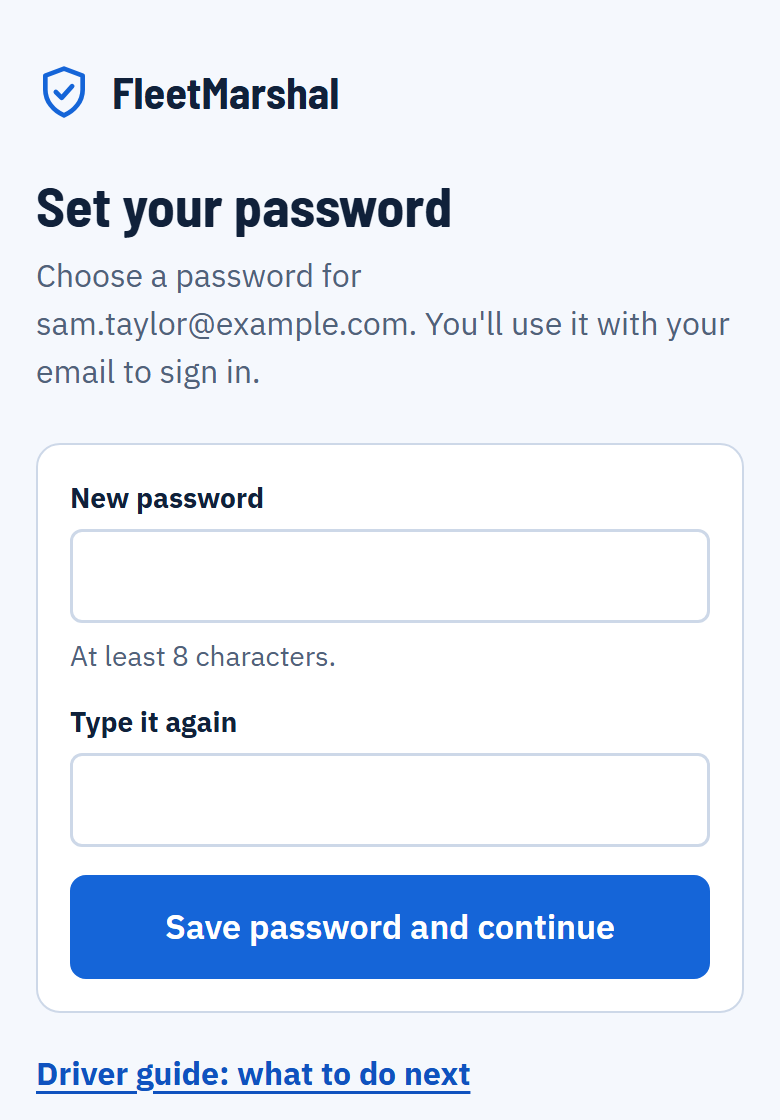
- Tap the link in the email. It opens the Set your password screen.
- Type a password of at least 8 characters, type it again, then tap Save password and continue.
From now on you sign in with the email address the invitation was sent to and the password you just chose.
The link in the email works once and then runs out. If it says the link didn't work, see If something goes wrong.
Read and accept the privacy notice
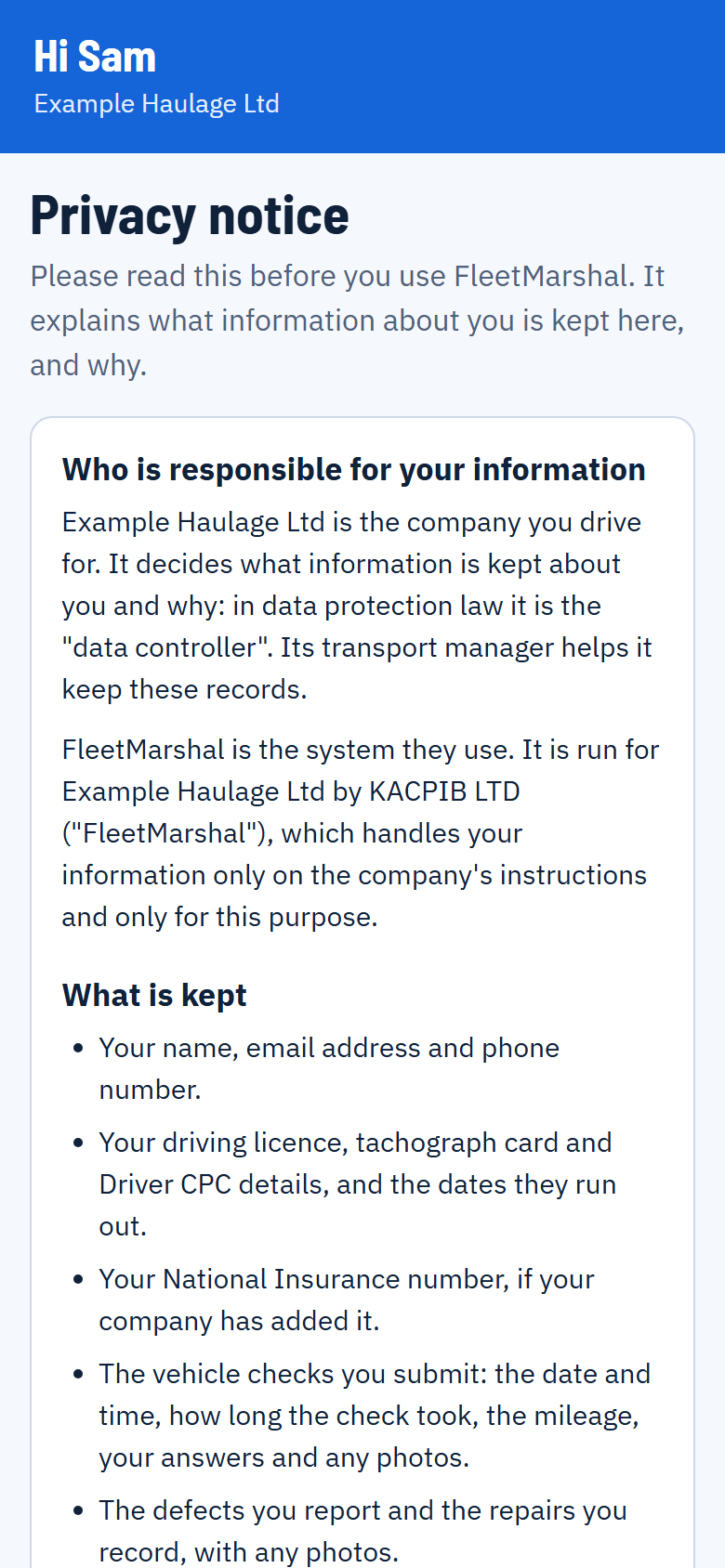
- The first time you sign in you see the Privacy notice. It explains what information about you is kept in FleetMarshal, why, who can see it and what your rights are. Read it through.
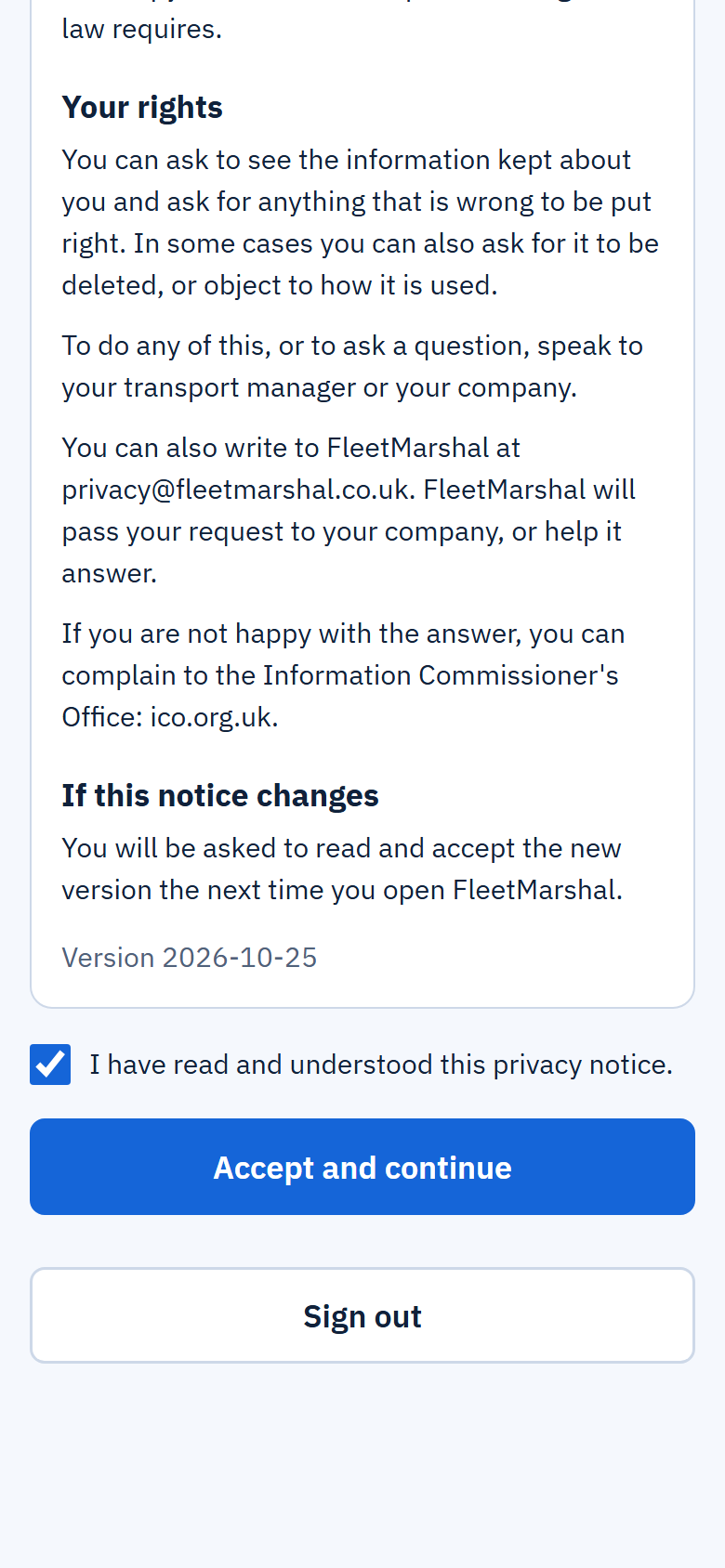
- At the bottom, tick I have read and understood this privacy notice.
- Tap Accept and continue. You're now on your home screen.
- You can't use FleetMarshal until you've accepted the notice.
- You only do this once. If the notice changes, you'll be asked to read and accept it again.
- To read it again later, tap My cards, then Privacy notice.
- If you have a question about it, ask your transport manager before you accept.
2. Put it on your phone's home screen
Do this once and FleetMarshal opens from its own icon, full screen, like any other app.
iPhone
- Open fleetmarshal.co.uk/sign-in in Safari.
- Tap the Share button (the square with an arrow pointing up).
- Scroll down and tap Add to Home Screen, then Add.
Android
- Open fleetmarshal.co.uk/sign-in in Chrome.
- Tap the three dots at the top right.
- Tap Add to Home screen (on some phones it says Install app), then Add.
- The first time you open FleetMarshal from the new icon you may have to sign in again, with the same email and password.
- Once you're signed in, the same steps are in the app: tap My cards, then Add to your home screen.
You stay signed in on your own phone, so most days you just tap the icon and start your check.
3. Signing in after that
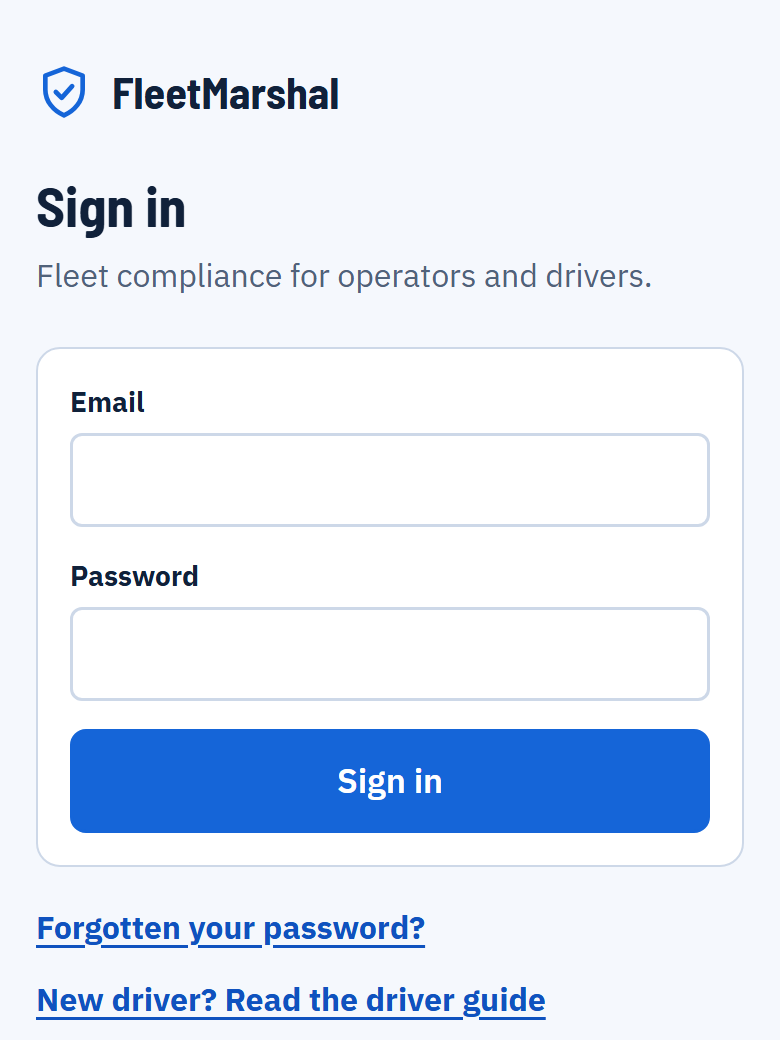
- Open FleetMarshal from its icon, or go to fleetmarshal.co.uk/sign-in.
- Type your email and your password.
- Tap Sign in.
Forgotten your password?
- On the sign-in screen, tap Forgotten your password?
- Type your email and tap Send reset link.
- Open the email it sends you, tap the link and choose a new password.
4. Your home screen
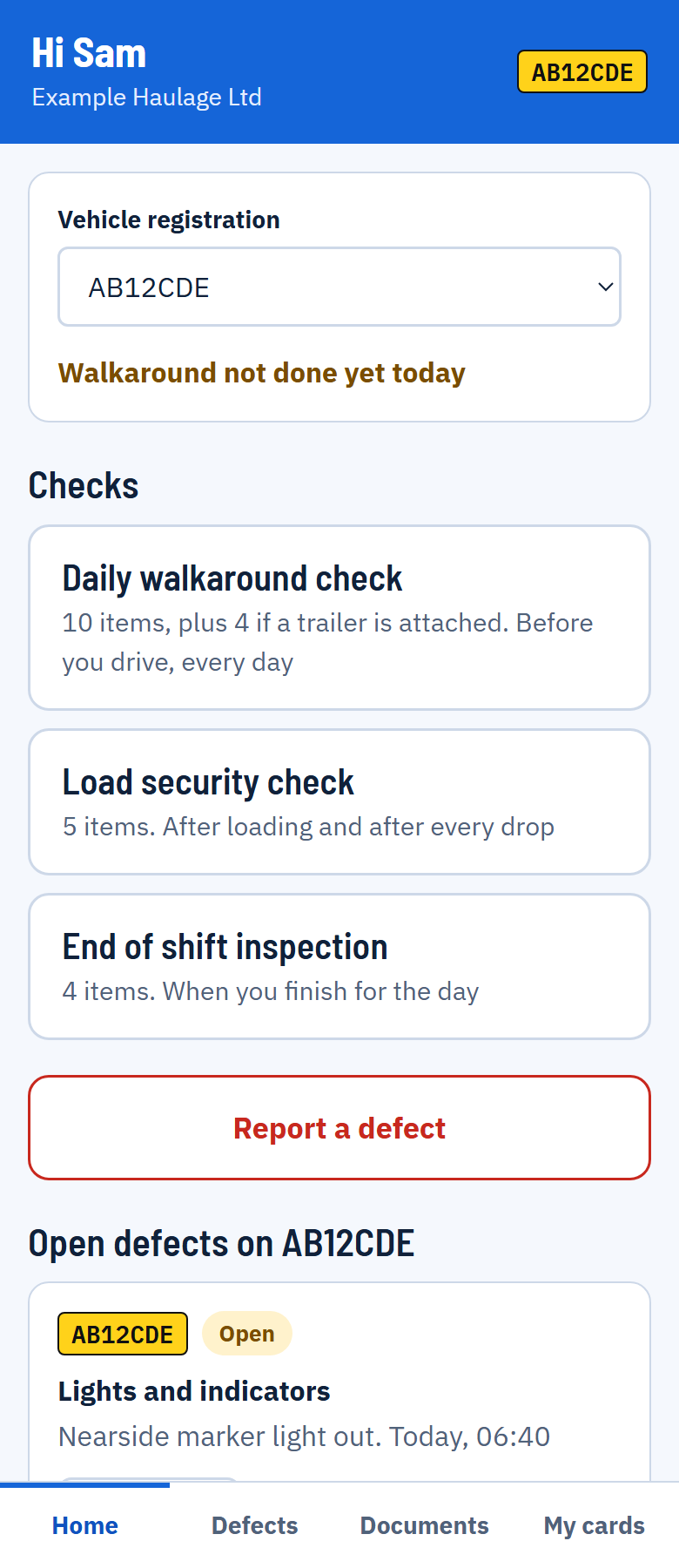
This is what you see every time you open FleetMarshal.
- Vehicle registration. The vehicle you're driving today. Always check it's the right one before you start, and change it here if not.
- Walkaround not done yet today. This changes to Walkaround done today, with the time, once you've sent your check.
- Checks. The checklists your company uses. Tap one to start it.
- Report a defect. For a problem you spot at any time, not just during a check.
- Open defects. Anything still outstanding on this vehicle.
- Home, Defects, Documents, My cards. The four buttons along the bottom take you between the main screens.
If you see a red box saying the vehicle is off road, don't drive it. Speak to your transport manager.
5. Do your daily walkaround check
Do this before you drive, every day you take a vehicle out.
- On your home screen, check the vehicle registration is the vehicle you're taking.
- Tap Daily walkaround check.
- Type the odometer reading in miles.
- Answer Is a trailer attached? If you tap Yes, tap your trailer or type its number. The trailer checks are then added to the list.
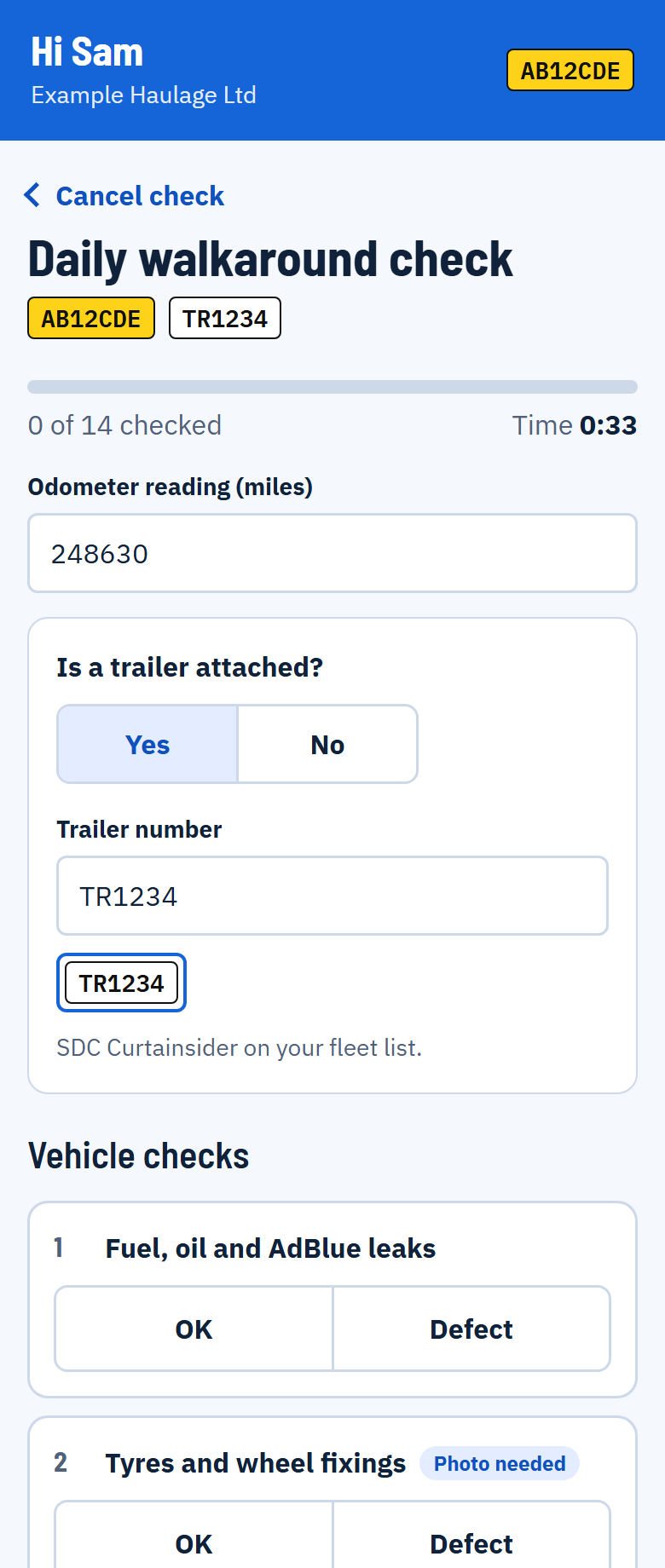
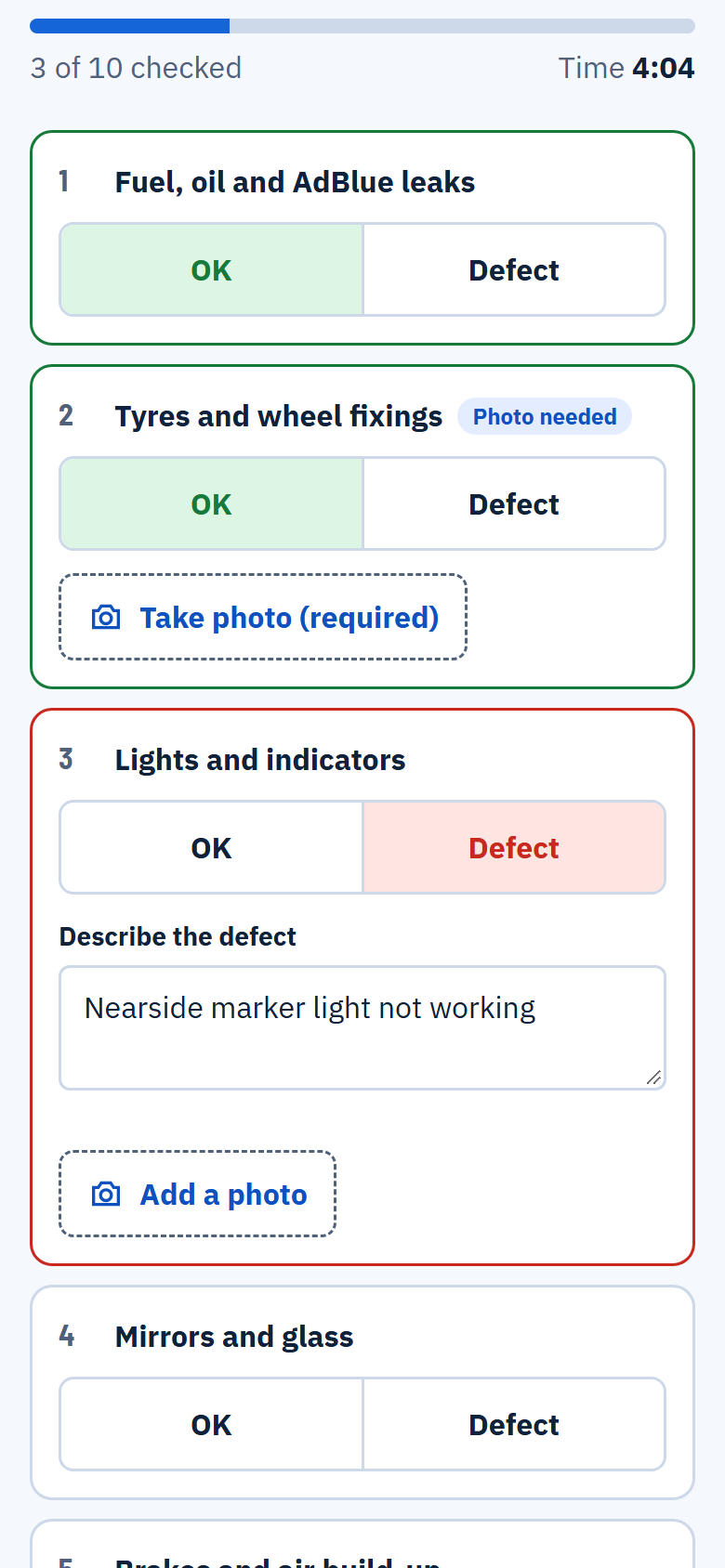
- Walk round the vehicle and work down the list. For each item tap OK or Defect.
- If you tap Defect, say what's wrong in Describe the defect and tap Add a photo if you can.
- An item marked Photo needed needs a photo even when it's OK. Tap Take photo (required).
The bar at the top shows how many items you've done and how long you've been on the check. Take the time to look at each item properly: your transport manager can see how long every check took.
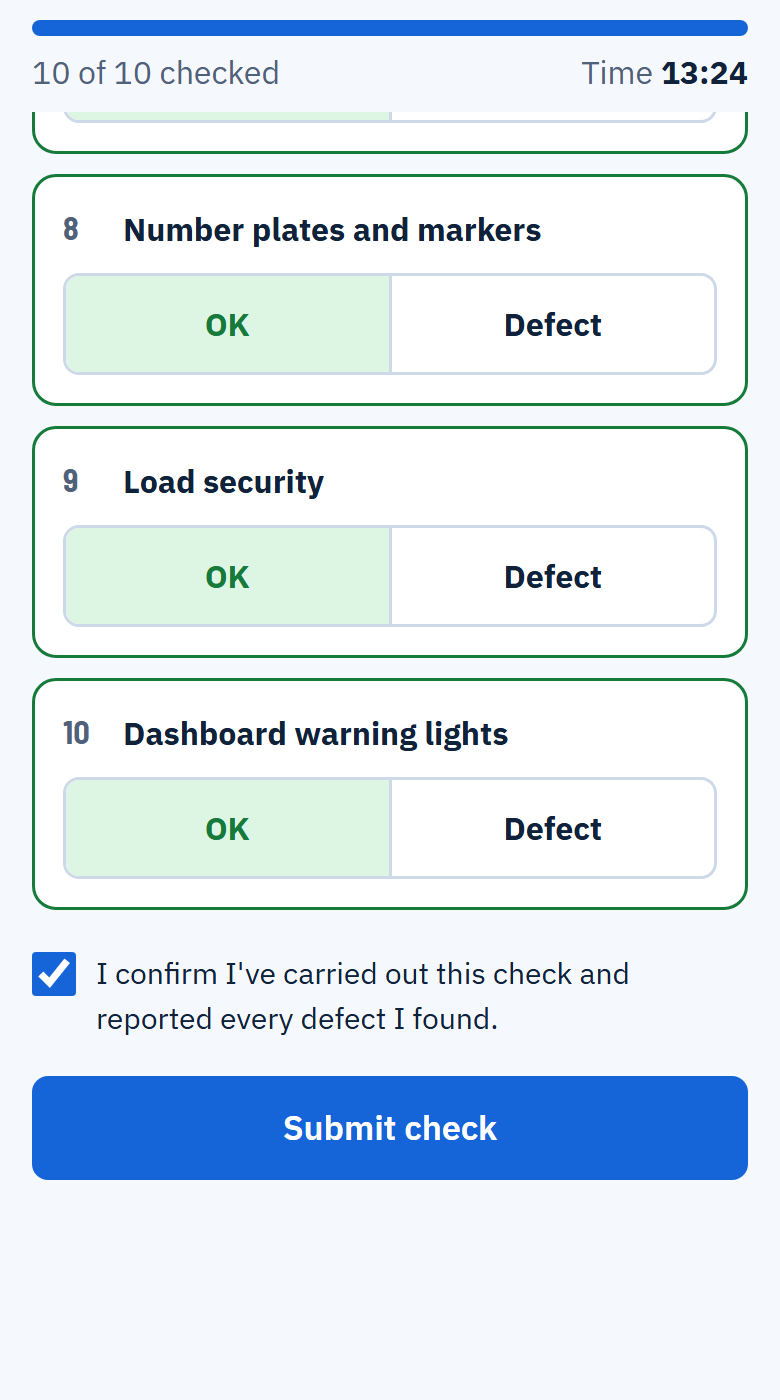
- When every item has an answer, tick I confirm I've carried out this check and reported every defect I found.
- Tap Submit check.
- You'll see Check submitted. Your check, and any defects in it, have gone to your transport manager.
Stay on the check until you've sent it. If you leave the screen or close FleetMarshal part way through, your answers are lost and you have to start again.
- If something is missing, a red message tells you what, for example "2 items not checked".
- You need a phone signal or Wi-Fi to send the check.
If you find something that makes the vehicle unsafe, don't drive it. Record the defect, then phone your transport manager.
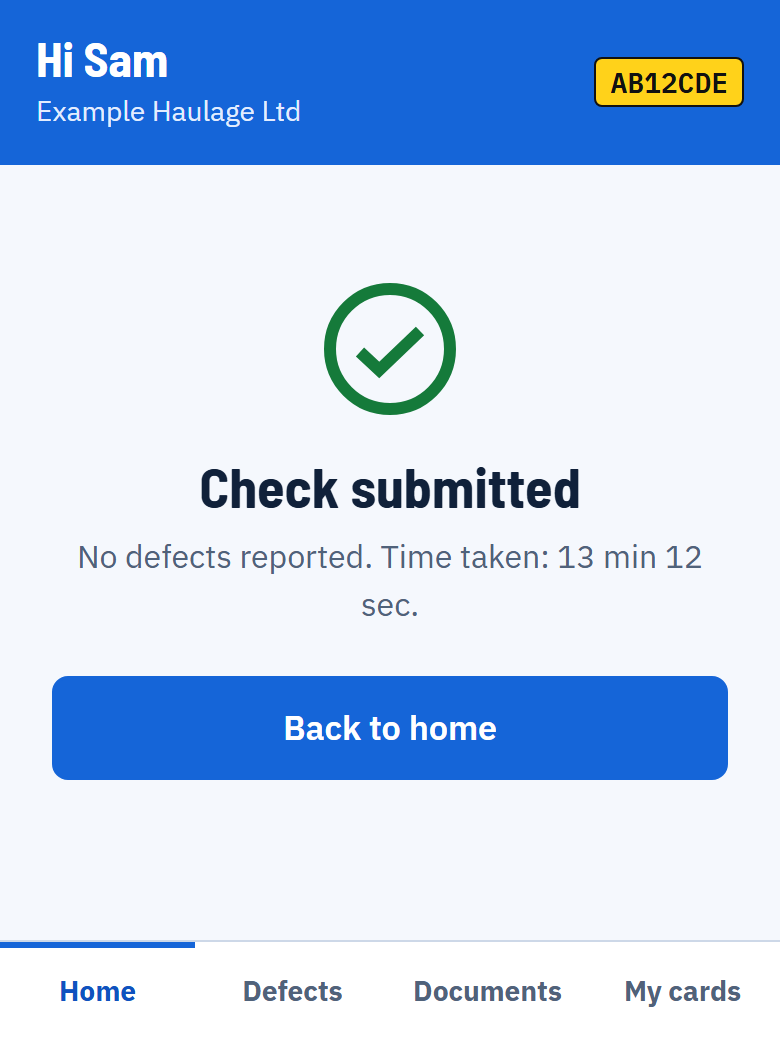
Your company may have other checklists too, such as a load security check or an end of shift inspection. They work in exactly the same way.
6. Report a defect at any time
Use this when you notice a problem during the day, not just on your walkaround.
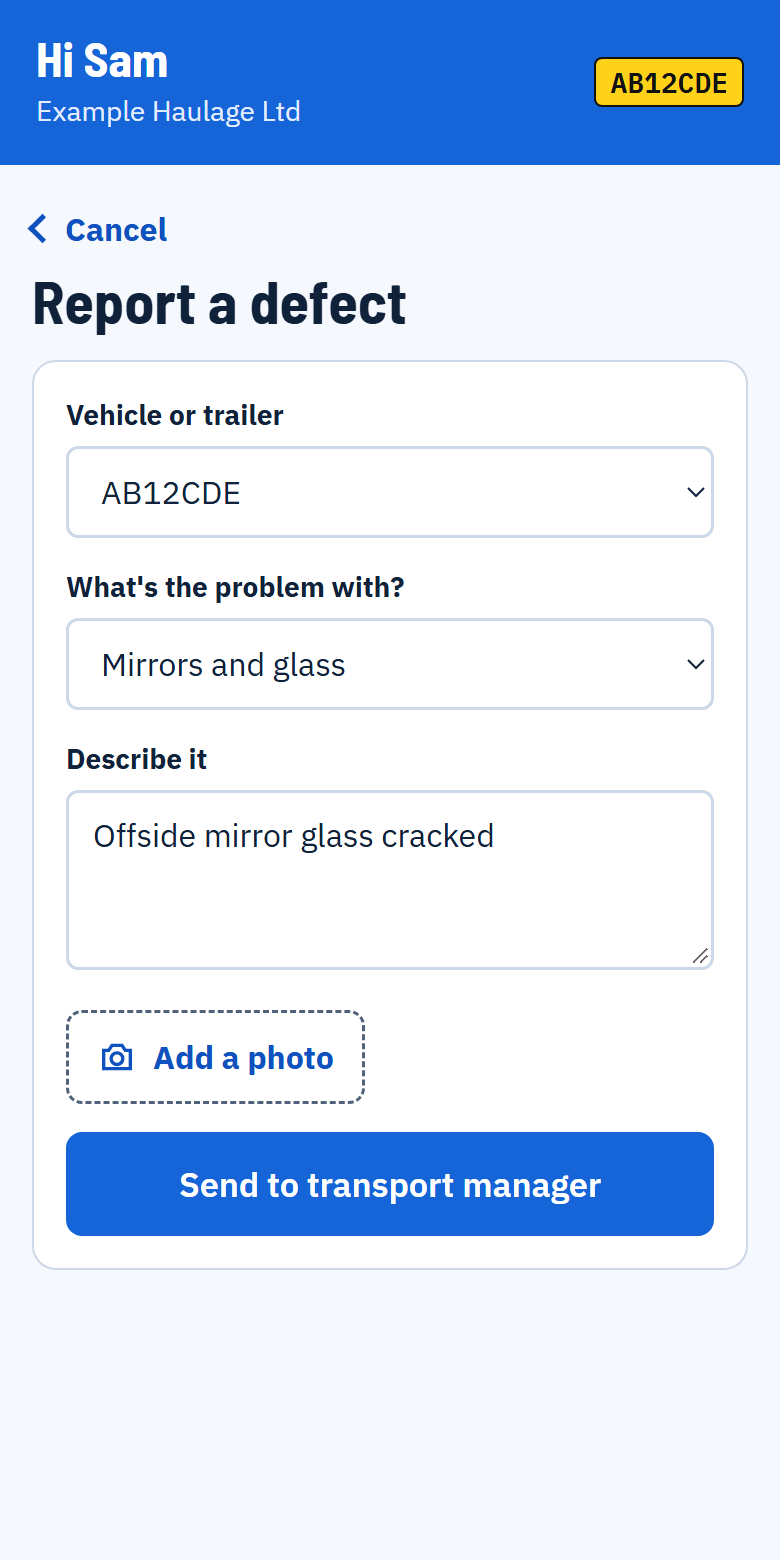
- On your home screen, tap Report a defect.
- Check the vehicle or trailer is right.
- Under What's the problem with?, choose the closest match, or Something else.
- Describe it in a few words and tap Add a photo.
- Tap Send to transport manager.
A good description says what and where: "Offside mirror glass cracked" is more use than "mirror".
7. Fix a defect yourself
For small things you're allowed to put right, like a blown bulb.
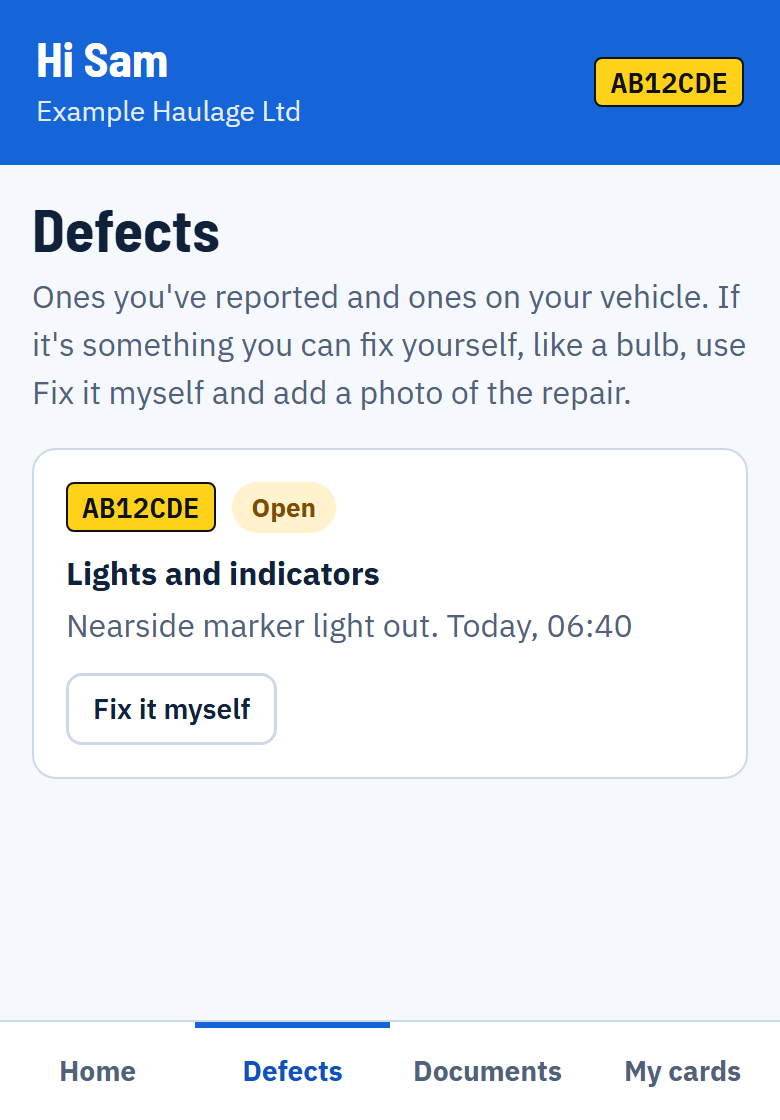
- Tap Defects at the bottom of the screen.
- Find the defect and tap Fix it myself.
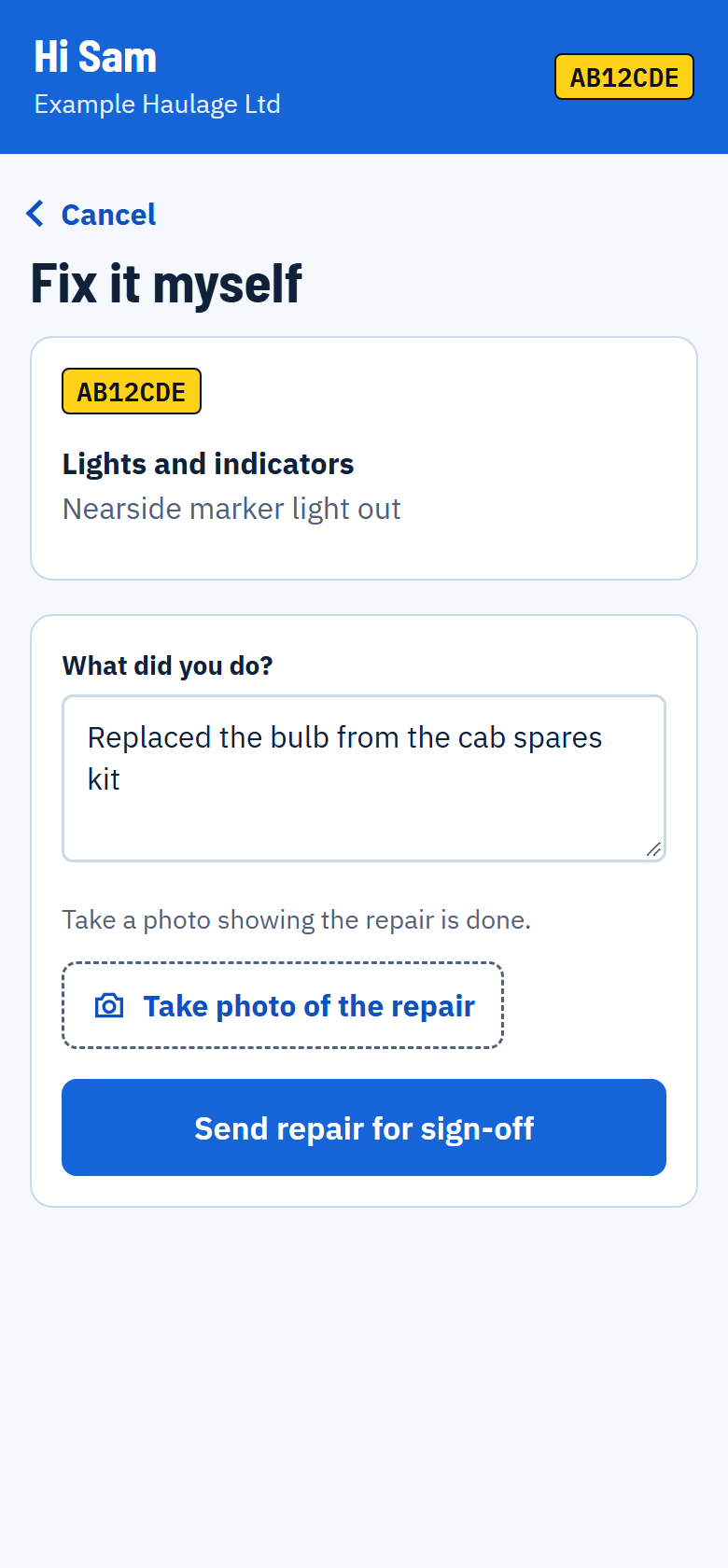
- Under What did you do?, say how you fixed it.
- Tap Take photo of the repair. The photo is required: it shows the repair is done.
- Tap Send repair for sign-off.
The defect then shows Awaiting sign-off until your transport manager has checked it and closed it.
The labels on a defect mean:
- Open reported, not fixed yet.
- Awaiting sign-off you've fixed it and your transport manager needs to check it.
- Closed dealt with.
8. Upload a document
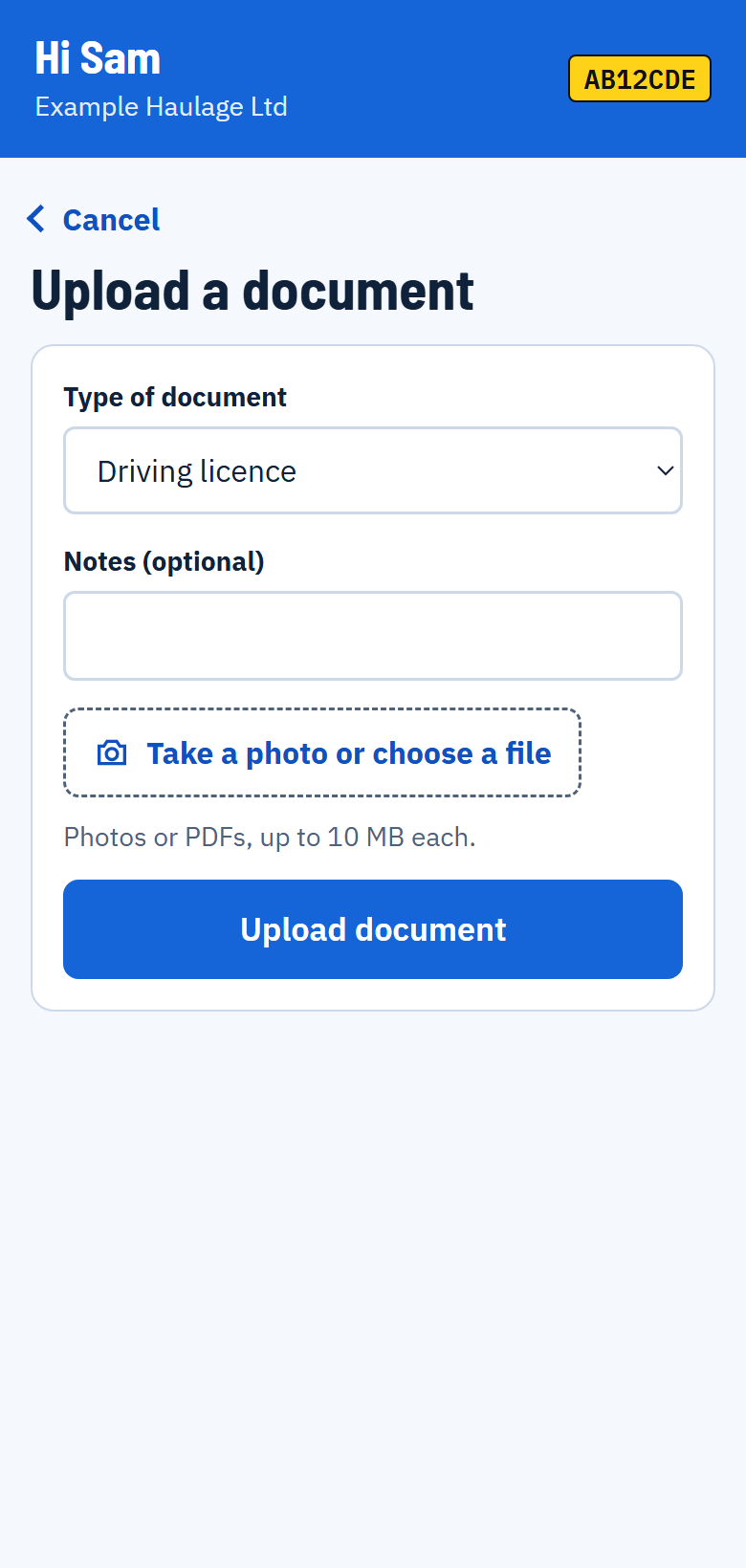
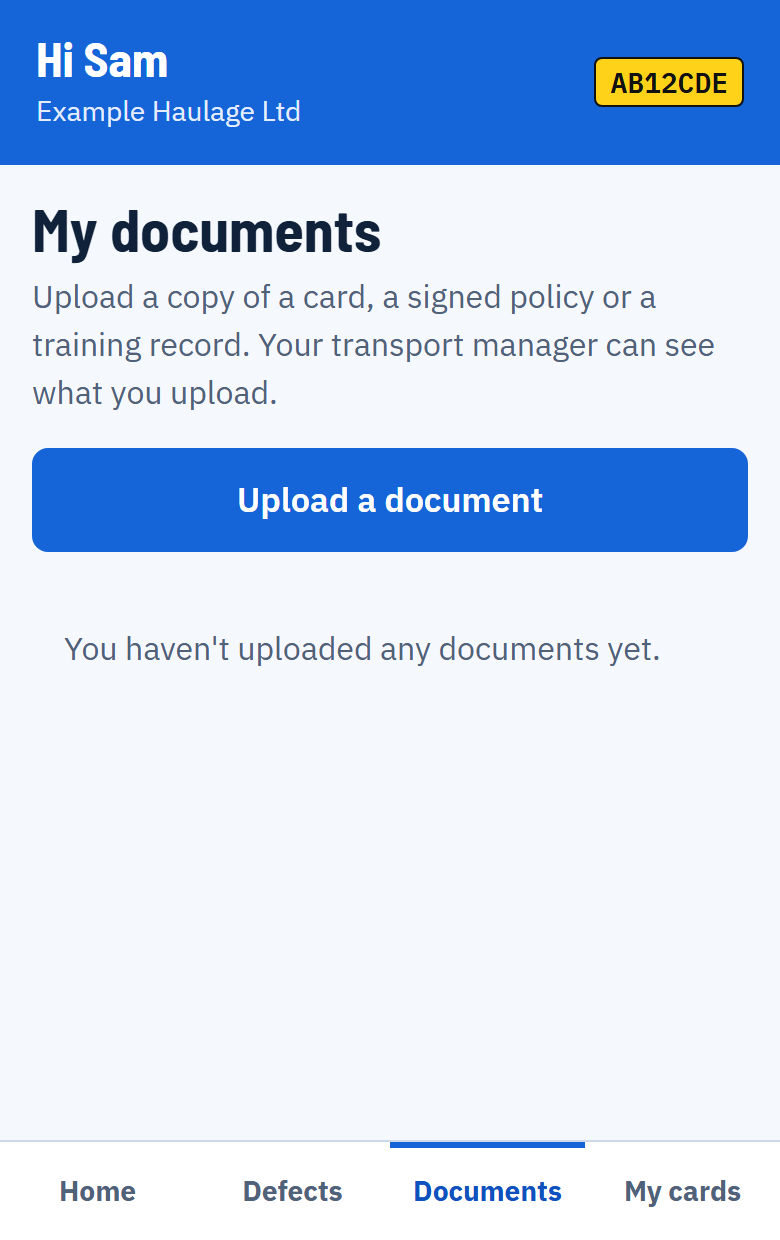
For a copy of your driving licence or cards, a policy you've signed, or a record of a toolbox talk or training. Your transport manager can see what you upload.
- Tap Documents at the bottom of the screen.
- Tap Upload a document.
- Under Type of document, choose what it is. If nothing fits, choose Other and type in what it is.
- Tap Take a photo or choose a file. Take a photo of the document, or pick a photo or PDF already on your phone. You can add more than one, for example the front and back of a card.
- Tap Upload document.
- Lay the document flat in good light and check you can read every word in the photo before you upload it.
- Each file can be up to 10 MB.
- The documents you've uploaded are listed on the Documents screen. Tap a file to open it.
- You can't delete a document once it's uploaded. If you uploaded the wrong one, tell your transport manager.
9. Sign a document
Your transport manager may send you a document to read and sign, such as a policy or a toolbox talk.
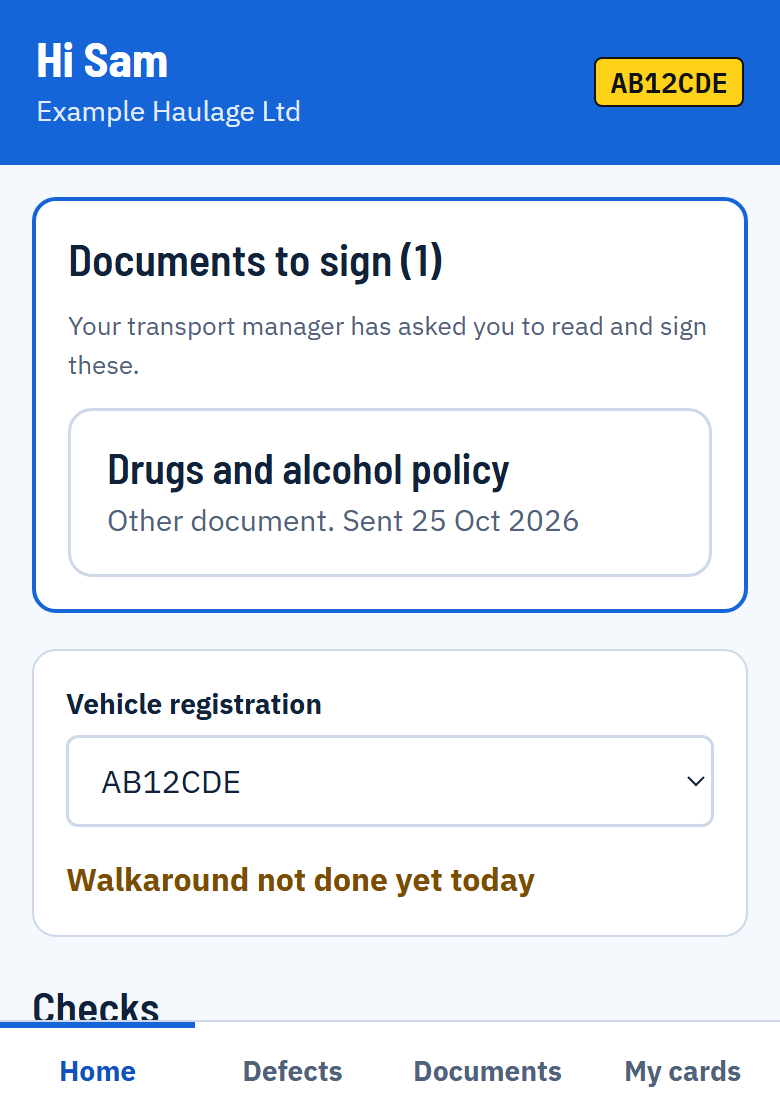
- Documents waiting for you appear at the top of your home screen under Documents to sign. Tap one to open it.
- Read the whole document. The places where your signature, name or date will go are marked in yellow. Tap Open the document in a new tab if you want to zoom in.
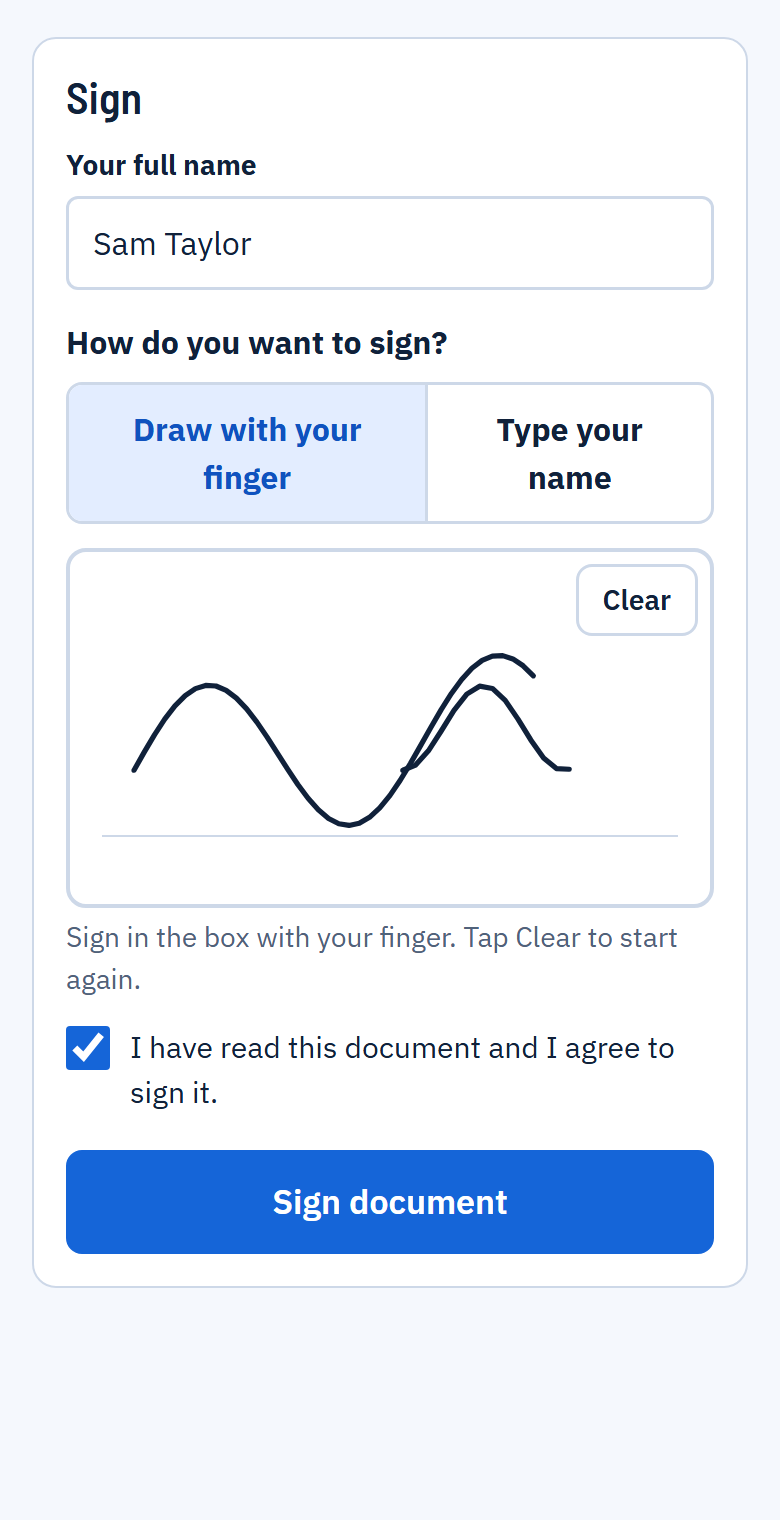
- Check Your full name is right.
- Choose how to sign: Draw with your finger and sign in the box, or Type your name and your typed name is used as your signature. Clear lets you start again.
- Tick I have read this document and I agree to sign it, then tap Sign document.
- Your signature goes into the marked places, and a signature record page with the date and time is added at the end.
- Your signed documents are listed on the Documents screen. Tap Download signed copy to keep one.
- Some documents are counter-signed by your transport manager afterwards. Until then it says Waiting for your transport manager to counter-sign.
- You can't change or take back a signature once it's sent. If something is wrong, tell your transport manager.
10. Check your licence and card dates
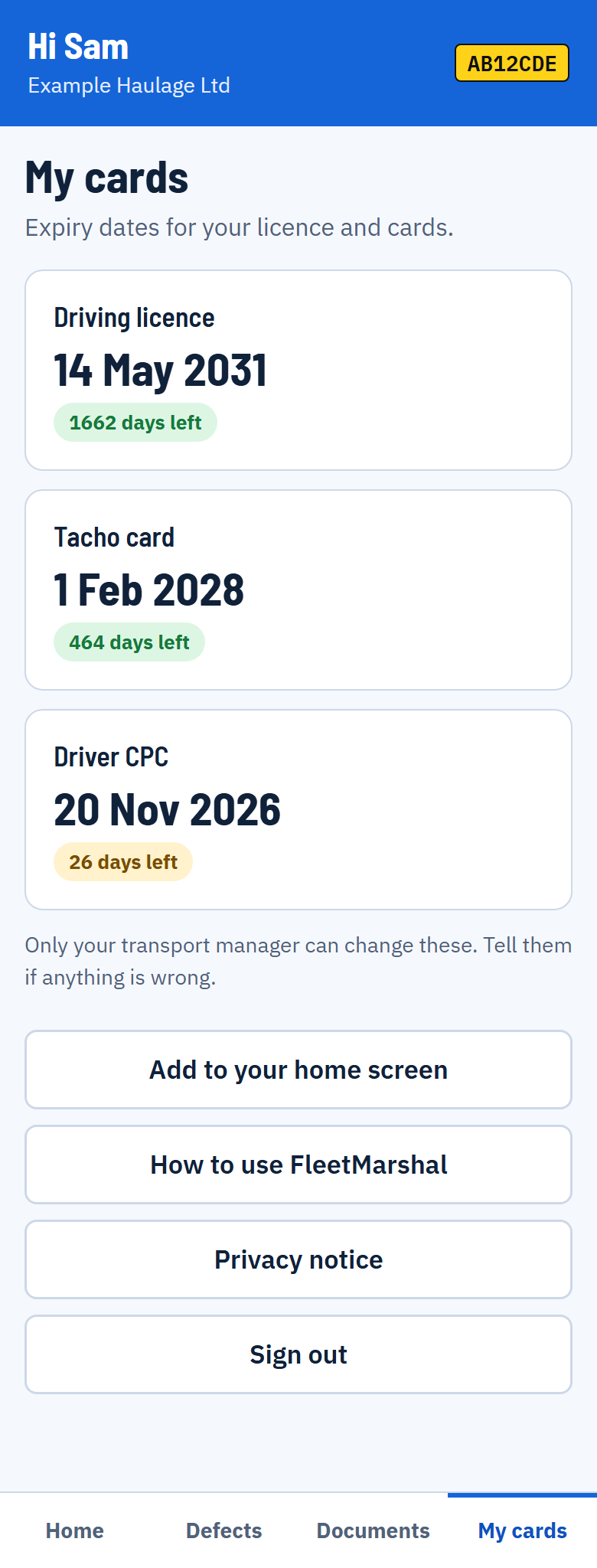
Tap My cards at the bottom of the screen to see when your driving licence, tacho card and Driver CPC run out.
- Green more than 30 days left.
- Amber 30 days or less. Time to renew.
- Red expired.
You can't change these dates yourself. If one is wrong or missing, tell your transport manager.
If a card has been renewed, upload a photo of the new one so your transport manager can update the date.
The Privacy notice button shows the notice you accepted when you first signed in.
Sign out is at the bottom of this screen. You only need it if you share a phone.
11. If something goes wrong
- I haven't had an invitation email
- Look in Junk or Spam. If it isn't there, ask your transport manager to check they have the right email address for you and to send the invitation again.
- It says "That link didn't work"
- The link has run out or has already been used. Go to fleetmarshal.co.uk/sign-in, tap Forgotten your password?, type your email and use the new link it sends you.
- It says "Wrong email or password"
- Use the email address your invitation was sent to. If you can't remember the password, tap Forgotten your password?
- It says "No access yet"
- Your login isn't linked to your company yet. Ask your transport manager to invite you.
- My vehicle or trailer isn't in the list
- Ask your transport manager to add it. For a trailer you can still type its number during the check.
- The camera won't open
- In your phone's settings, allow your browser (Safari or Chrome) to use the camera, then try again.
- The check won't send
- Read the red message above the button: it says what's missing. If there's no message, check you have a signal and try again.
- It says "Drivers cannot upload documents yet"
- Your company hasn't switched this on. Tell your transport manager, and give them the document another way for now.
- Something looks wrong on the screen
- Close FleetMarshal and open it again.
Questions about your checks or your vehicle? Speak to your transport manager.